

You spend an hour perfecting your resume, hit submit on a Workday application, and hear nothing back. The problem often has nothing to do with your qualifications. Workday's applicant tracking system reads your resume like a machine, and if your formatting confuses it, your experience gets scrambled, dropped, or ignored before a single human sees your name. Knowing how to format resume for Workday correctly is not optional anymore. It is the difference between getting a callback and disappearing into the void.
Table of Contents
- Key takeaways
- How to format resume for Workday: the basics
- Formatting each section for maximum impact
- Common Workday formatting mistakes to avoid
- Testing your resume before you apply
- My honest take on Workday resume formatting
- Get your resume Workday-ready faster with Parseworks
- FAQ
Key takeaways
| Point | Details |
|---|---|
| Use DOCX over PDF | Workday parses DOCX files more accurately, capturing dates and job titles with fewer errors. |
| Single-column layout only | Multi-column formats scramble Workday's parser and can erase entire sections of your experience. |
| Standard section headers matter | Labels like "Experience," "Education," and "Skills" help Workday recognize and categorize your content. |
| Test before you submit | Running your resume through a parser preview tool catches errors before they cost you an interview. |
| Tailor for each role | Rebuilding your skills and profile sections with job-specific keywords significantly improves your ATS ranking. |
How to format resume for Workday: the basics
Before you write a single bullet point, you need to understand what Workday's parser can and cannot read. Getting this foundation right saves you from invisible errors that kill applications silently.
File format: DOCX wins every time
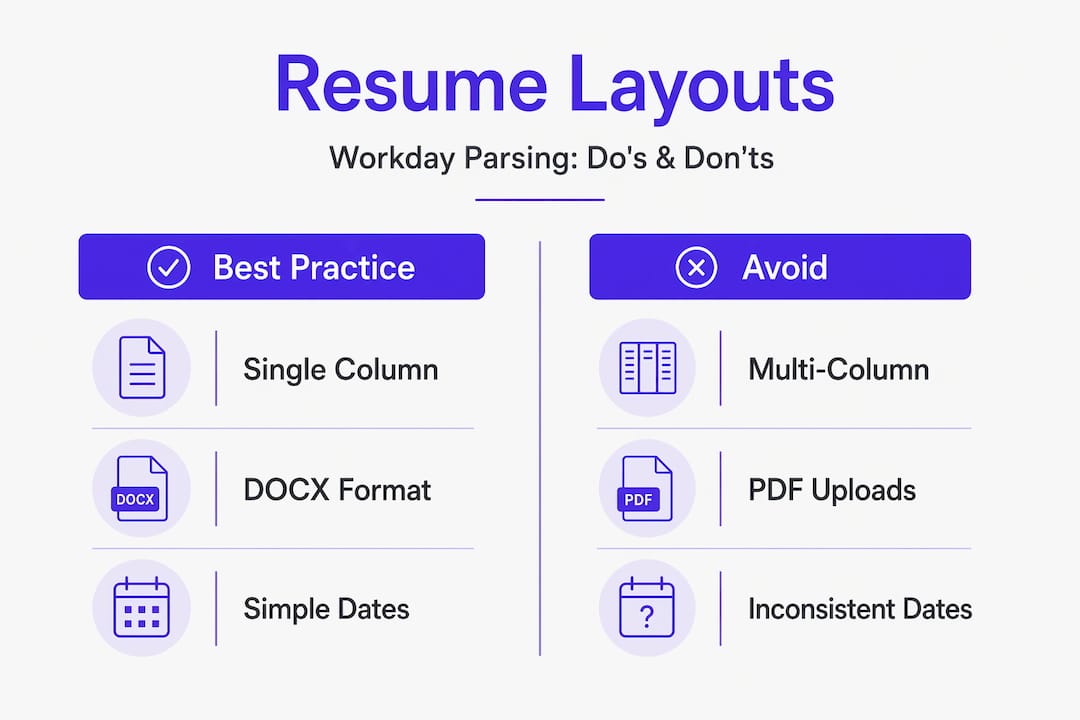
Workday parsers prefer DOCX files over PDFs, producing cleaner parses with better date recognition. PDFs can work if they are text-based and pass a copy-paste test (open the PDF, select all text, paste into Notepad, and check if it reads cleanly). But even then, DOCX is the safer bet. Save your resume as a .docx file unless the job posting explicitly asks for something else.
Layout: keep it linear
Multi-column layouts frequently break Workday's parser, scrambling experience order or omitting sections entirely. A single-column layout is the only format you should use. Think of it like a newspaper column, not a magazine spread. Everything flows top to bottom, left to right, with no exceptions.
Elements to remove immediately
The following elements look polished in a PDF viewer but destroy your parse results in Workday:
- Tables (including skills tables and two-column experience layouts)
- Headers and footers (Workday often discards content in headers and footers, so your contact info goes missing)
- Text boxes
- Images, logos, or icons
- Colored text or shading
- Decorative lines or borders
Date formats that actually parse
Use a consistent format like "Jan 2024 to Present" throughout your resume. Unconventional date formats like "Spring 2024" or "January '24" cause the parser to miss your timeline entirely. Workday needs clean, predictable data to build your candidate profile correctly.
| Element | Do this | Avoid this |
|---|---|---|
| File type | .docx | .pdf (unless required) |
| Layout | Single column | Two-column, sidebar |
| Dates | Jan 2024 to Present | Spring 2024, Jan '24 |
| Skills | Comma-separated list | Table or grid |
| Contact info | In the document body | In a header or footer |
Pro Tip: Name your file professionally. Professional filenames like FirstName-LastName-Role.docx rank better in ATS sorting and signal attention to detail to recruiters.
Formatting each section for maximum impact
Once your structure is clean, you need to format each section so Workday captures it correctly and recruiters actually want to read it. Here is how to work through each part of your resume.
-
Header. Put your full name, professional title, city and state, phone number, email, and LinkedIn URL on separate lines at the top of the document. Do not use a text box or a table. Plain text only. Keep it simple and scannable.
-
Professional profile. Write two to three sentences that summarize your role, your strongest skills, and one measurable achievement. A concise profile immediately orients recruiters to your background and goals. Paragraph-heavy summaries slow recruiters down and dilute your message. Tailor this section to match the specific job description you are applying for.
-
Skills. List your skills in comma-separated groups organized by category. For example: Languages: Python, SQL, JavaScript | Tools: Jira, Confluence, Figma. Comma-separated skills are parsed more reliably than skills arranged in tables, which often get omitted or jumbled by Workday's parser. Only list skills you could speak to confidently in an interview. Irrelevant or outdated skills like MS Word or a college language course dilute your keyword relevance.
-
Experience. Use a clean format: Company name on one line, your job title and dates on the next, then three to five bullet points. Start every bullet with a strong action verb. Include numbers wherever possible. "Reduced customer churn by 18% over two quarters" is infinitely more useful than "Helped improve retention." Workday reads your bullets and recruiters judge them. Both audiences need specifics.
-
Projects. If you include a projects section, list the project name, the technologies used, and one measurable outcome. Add a live link if the project is publicly accessible. Keep each entry to two or three lines. This section is especially valuable for career changers and recent graduates who need to demonstrate applied skills.
-
Education. List your degree, institution, graduation year, and any relevant honors or coursework. That is it. You do not need your GPA unless it is above 3.5 and you graduated within the last three years. Do not include your high school if you have a college degree.
Pro Tip: Rebuilding your resume for each role with relevant keywords and a tailored profile significantly boosts your ATS ranking. It takes 15 extra minutes and it is worth every second.
Common Workday formatting mistakes to avoid
Most formatting errors are not obvious until they have already cost you an opportunity. These are the mistakes that show up most often and how to fix them.
Multi-column layouts. This is the single most damaging formatting choice you can make for a Workday application. When the parser reads a two-column resume, it often reads across both columns simultaneously, turning your carefully written experience into nonsense. A resume that reads "Project Manager | Python | Led a team of 8" might get parsed as "Project Manager Python Led a team." Your experience disappears or becomes unreadable.
Inconsistent dates. If you write "January 2022" in one job and "Jan 2023" in the next, the parser may not connect them properly. Pick one format and use it everywhere. "Jan 2022 to Mar 2024" works well. So does "01/2022 to 03/2024." Just stay consistent.
PDF problems. Not all PDFs are created equal. A PDF exported from a well-formatted Word document usually parses acceptably. A PDF created by scanning a printed resume, or one built in a design tool like Canva or Adobe Illustrator, will almost certainly fail. If you must use a PDF, run the copy-paste test described earlier. If the pasted text looks scrambled, your parse will too.
Font choices. Simple fonts like Calibri, Arial, or Georgia with consistent sizing improve both parsing and recruiter readability. Use 10 to 12 points for body text and 14 to 16 points for your name. Decorative or script fonts may render as symbols or get skipped entirely.
"Simple, uniform formatting and familiar section headings matter more than fancy design. ATS is about data extraction, not aesthetics." — Resume formatting research
Pro Tip: Before submitting, open your DOCX file in Google Docs and check if the formatting holds. If anything shifts or breaks, fix it in Word before uploading to Workday.
Testing your resume before you apply
Formatting your resume correctly is step one. Verifying that it actually parses correctly is step two. Most people skip this entirely.
Here is a practical process to check your resume before every application:
-
Run a parser preview. Free online parser previews can simulate how Workday reads your resume. Upload your file and look at the extracted output. Does your name appear correctly? Are your job titles and dates intact? Are your skills listed as you wrote them?
-
Check for merged sections. A common parsing failure is two sections running together. Your education might get attached to your last job, or your skills might appear inside your experience. Look for these merges in the parser output and fix the spacing or section headers in your document.
-
Look for missing dates. If a date does not appear in the parser output, Workday cannot build your timeline. Go back and reformat that date entry using a standard format.
-
Run the plain-text test. Copy your entire resume and paste it into a plain text editor. Read through it. If anything looks out of order or garbled, your parse will reflect that. Fix the source document and re-test.
-
Check your filename. Save your final file as FirstName-LastName-JobTitle.docx before uploading. It is a small detail that signals professionalism and helps recruiters find your file later.
| Verification step | What to look for |
|---|---|
| Parser preview | Name, title, dates, and skills all appear correctly |
| Section check | No merged or missing sections |
| Plain-text test | Content reads in logical order |
| Filename | Professional format: FirstName-LastName-Role.docx |
Pro Tip: Keep a "master resume" DOCX with all your experience, then create a tailored copy for each application. This saves time and keeps your formatting consistent across every version.
My honest take on Workday resume formatting
I have reviewed hundreds of resumes that failed ATS screening for reasons their owners never suspected. The most common story is not a bad resume. It is a beautifully designed resume that a machine could not read.

What I have found is that most people treat resume formatting as an aesthetic exercise. They spend hours choosing fonts and adjusting margins, then upload a two-column masterpiece to Workday and wonder why they hear nothing back. The formatting that looks impressive in a PDF viewer is often the exact formatting that destroys your parse.
The insight that changed how I think about this: ATS systems do not admire your resume. They process it. The goal is not to impress the parser. The goal is to give it nothing to trip over.
What actually moves the needle is not a prettier resume. It is a cleaner one. The candidates I have seen get the most callbacks are the ones who stripped their resumes down to a single column, used standard headers, wrote tight two-line profiles tailored to each role, and tested their output before submitting. No graphics. No tables. No clever formatting tricks. Just clean, parseable, keyword-matched content.
The other thing I would push back on is the idea that ATS optimization and good writing are in conflict. They are not. A resume that parses perfectly and reads well is absolutely achievable. You just have to write for both audiences, the machine first, then the human.
— Sam
Get your resume Workday-ready faster with Parseworks
Knowing the rules is one thing. Applying them consistently across every application is another challenge entirely.
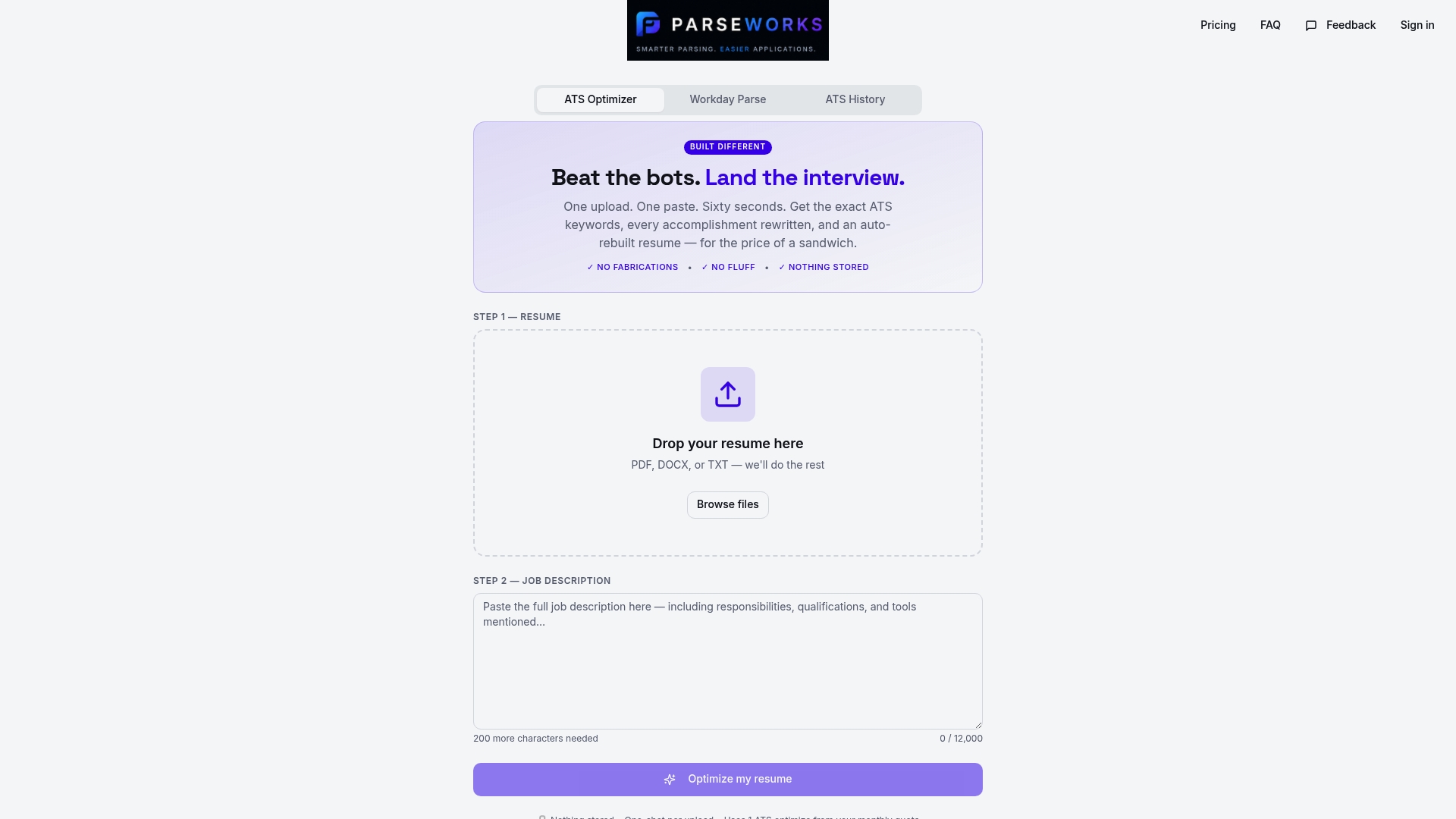
Parseworks is built specifically for this problem. It parses your resume the same way Workday does, shows you exactly what gets captured and what gets dropped, and helps you fix it before you apply. You get ATS keyword scoring, bullet rewrite suggestions, and formatting checks in one place, without manually copy-pasting your resume into a dozen different fields. If you are applying to multiple Workday-powered companies and want to stop guessing whether your resume is being read correctly, try Parseworks and see your resume the way Workday actually sees it. Check the pricing page to find the plan that fits your search.
FAQ
What file type should I use for a Workday application?
Use a DOCX file whenever possible. Workday's parser produces more accurate results with DOCX files, capturing dates and job titles with fewer errors than PDF submissions.
Why is my resume not parsing correctly in Workday?
The most common causes are multi-column layouts, tables, text boxes, headers and footers, and inconsistent date formats. Switch to a single-column DOCX with standard section headers to fix most parsing issues.
Can I use a PDF for my Workday resume?
You can, but only if the PDF is text-based and passes a copy-paste test. Design-tool PDFs and scanned documents almost always fail. DOCX is the safer and more reliable choice.
How do I know if my resume is ATS-compatible?
Run your resume through a free parser preview tool online. Check that your name, contact info, job titles, dates, and skills all appear correctly in the extracted output before you submit.
Does Workday rank resumes by keyword match?
Yes. Workday scores candidates partly based on how well their resume keywords match the job description. Tailoring your skills section and professional profile to each specific role significantly improves your ranking in the applicant pool.