

Your resume might be getting rejected before a single human reads it. ATS blacklisted resume formats are more common than most job seekers realize, and the frustrating part is that a beautifully designed resume can actually hurt you more than help you. Formatting errors cause up to 25% data loss during ATS parsing, meaning a quarter of your qualifications could vanish simply because of how your resume looks. This guide breaks down exactly which formats trigger ATS rejection, why they fail, and what to do instead.
Table of Contents
- Key takeaways
- Common resume formats that cause ATS blacklisting
- How different ATS systems handle resume parsing
- Best resume layout to avoid ATS blacklisting
- How to fix your existing resume for ATS compatibility
- My honest take on why candidates keep getting this wrong
- Check your resume before your next application
- FAQ
Key takeaways
| Point | Details |
|---|---|
| Formatting causes rejections | Two-column layouts and tables can silently wipe out critical resume data before a recruiter sees it. |
| ATS systems vary widely | Greenhouse handles PDFs better than Taleo, which strongly prefers simple .docx files. |
| One resume is not enough | Keep a plain ATS-friendly .docx for uploading and a styled PDF for networking and direct outreach. |
| Standard headers matter | Using creative section labels instead of "Work Experience" or "Skills" confuses ATS parsers. |
| Hidden text triggers flags | White-on-white font tricks and metadata manipulation get resumes flagged as suspicious content. |
Common resume formats that cause ATS blacklisting
Most candidates assume their resume is getting rejected because their skills are not a match. The real reason is often far simpler and far more fixable. Certain design choices consistently break ATS parsing engines, and the damage happens invisibly before any recruiter touches the file.
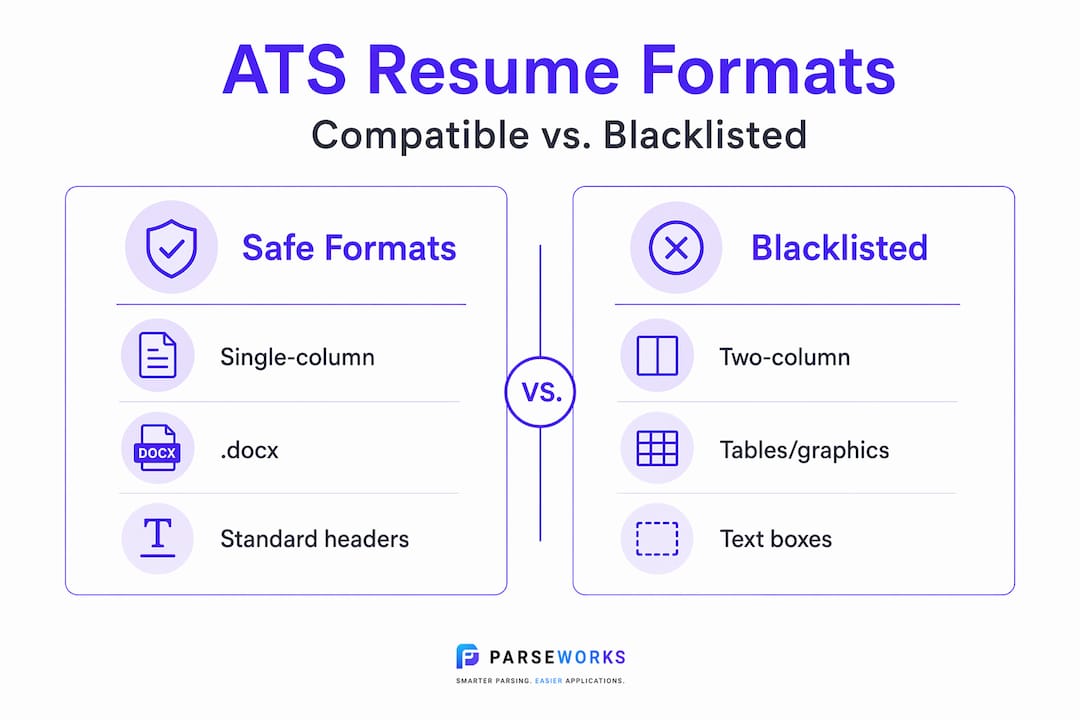
Two-column and multi-column layouts are among the most widely used ATS blacklisted resume formats. They look sharp on screen, but most ATS systems read documents left to right, top to bottom, like a single stream of text. When they hit a two-column layout, they either merge both columns into a single confusing line or skip entire sections. A job title from column one gets fused with a skill from column two, and the result is gibberish in the recruiter's system.
Tables and text boxes create a similar problem. Content inside Word text boxes is often completely invisible to ATS parsers. If your contact information, summary, or skills section sits inside a text box, the parser skips it entirely. Tables behave unpredictably too, sometimes merging adjacent cell content in ways that make data unreadable.
Here are the most common formatting elements that get resumes blacklisted or severely downgraded:
- Images, logos, and icons. ATS systems cannot read images. Profile photos, company logos in your work history, and decorative icons all get ignored or cause parsing errors.
- Non-standard fonts and special bullet characters. Fonts like Lobster or Raleway, and bullets styled as arrows or custom symbols, often render as garbled characters in ATS output.
- Creative section headers. Labels like "Where I've Been" instead of "Work Experience," or "My Toolkit" instead of "Skills," confuse ATS parsers that expect standard section labels to segment your resume correctly.
- Contact info in headers or footers. Many candidates put their phone number and email in the document header. ATS parsers frequently skip header and footer content, so your contact data never makes it into the system.
- Unsupported file types. Submitting .pages, .odt, or image-based PDFs created by scanning a physical document will cause parsing failures on most platforms.
- Hidden white text. Some candidates try padding keyword scores by placing invisible white text on a white background. Modern ATS platforms flag this as suspicious content, routing the resume to a spam queue rather than a recruiter's inbox.
Pro Tip: Before you apply anywhere, paste your resume content into a plain text editor like Notepad. If the information reads in logical order and nothing is missing, your layout is likely ATS-safe. If it looks scrambled, fix it before uploading.
How different ATS systems handle resume parsing
Not all ATS platforms are created equal. Understanding the differences helps you make smarter decisions about which file type and layout to use for each application.
| ATS Platform | PDF Handling | Column Layouts | Recommended Format |
|---|---|---|---|
| Greenhouse | Strong | Partially supported | .docx or text-based PDF |
| Lever | Good | Limited support | .docx or text-based PDF |
| Workday | Moderate | Poor | .docx strongly preferred |
| Taleo | Weak | Fails frequently | .docx only |
| iCIMS | Moderate | Poor | .docx with simple layout |
Greenhouse and Lever handle PDFs significantly better than older platforms, which is why candidates applying to tech startups often get away with formatted PDFs. But legacy Taleo systems struggle with PDFs and complex layouts, and Taleo powers a huge portion of enterprise hiring at Fortune 500 companies. If you are applying to a large corporation, you are almost certainly going through Taleo or a similar legacy system.

Workday is worth special attention. It has its own specific formatting quirks for resumes that trip up even experienced candidates. Its parser is moderately capable with PDFs but frequently misreads columns, merges table data, and drops header content. A clean single-column .docx file almost always performs best across all of these platforms simultaneously.
The safest universal strategy is to default to a single-column .docx and switch to a text-based PDF only when the job posting explicitly requests it or when you know the company uses a modern ATS like Greenhouse.
Best resume layout to avoid ATS blacklisting
Building a resume that passes ATS scans is not about dumbing down your application. It is about giving the parser exactly what it needs so your real qualifications come through clearly. Here is what works:
- Use a single-column layout. Everything flows top to bottom in one column. No sidebars, no split sections, no floating text boxes. This single change eliminates the most common source of parsing errors.
- Choose ATS-safe fonts. Stick to Calibri, Arial, Garamond, or Times New Roman at 10 to 12 points for body text. These render correctly across every major ATS platform without symbol substitution.
- Use standard section headers. Write "Work Experience," not "Career History." Write "Education," not "Academic Background." Write "Skills," not "What I Bring." ATS parsers match against known label variations, and creative headers cause content misclassification.
- Place all contact information in the main body. Put your name, phone, email, LinkedIn URL, and location in the very first section of the document body, not in a Word header. This protects the data from getting skipped.
- Submit as .docx by default. Unless the application specifically requests a PDF, .docx gives you the widest ATS compatibility. If you must submit a PDF, make sure it is text-based and not a scanned image.
- Replace tables and columns with white space. Use tabs and line breaks to create visual separation between date ranges and job titles. It looks clean, parses cleanly, and does not require any special formatting.
- Use simple, standard bullet points. The standard round bullet in your word processor is all you need. Avoid decorative symbols, checkmarks, or custom characters.
- Keep date formats consistent. Use "Month Year" or "MM/YYYY" throughout. Mixed date formats confuse parsers and can cause experience timelines to be misread or ignored.
Pro Tip: Check your ATS resume length too. An unusually long resume with pages of dense text can hurt your score just as much as a poorly formatted one.
How to fix your existing resume for ATS compatibility
If your current resume uses any of the formats described above, do not start from scratch. A targeted fix is faster and often just as effective.
Start by running your resume through an ATS checker tool to get a concrete score and a list of flagged issues. An ATS score of 80 or above is generally where candidates start seeing meaningful improvement in callback rates. If you are scoring in the 60s or below, formatting is almost certainly part of the problem.
- Create two versions of your resume. Talent acquisition experts recommend maintaining one stripped-down .docx built purely for ATS uploads, and one visually polished PDF for sending directly to contacts, portfolio sites, or networking conversations. This is not extra work. It is protection.
- Rebuild columns as a single flow. If your resume uses a two-column layout, copy the content from the right column and append it logically below the left column content. Skills lists, certifications, and technical proficiencies work well at the bottom of a one-column layout.
- Delete all text boxes. Select any text boxes in your Word document, copy the text inside them, and paste it directly into the document body as regular paragraph text. Then delete the empty box.
- Standardize your bullets. Do a find-and-replace for any non-standard bullet characters and replace them with a standard period or standard bullet. Clean typography reads better in ATS output.
- Strip hidden text and metadata. In Microsoft Word, use the Document Inspector (under File > Info > Check for Issues) to remove hidden text, tracked changes, and personal metadata before uploading.
- Incorporate keywords naturally. Tailor your resume to each job description by mirroring the language of the posting. Match job titles, skill labels, and terminology exactly, without inventing fake keyword stuffing. ATS systems score based on relevance, not volume.
Pro Tip: After fixing your resume, paste it into Google Docs and convert it back to .docx. This strips out any lingering Word formatting artifacts that may still confuse parsers.
My honest take on why candidates keep getting this wrong
I have spent years looking at how professionals approach the ATS problem, and the most common mistake I see is not a formatting mistake at all. It is a mindset mistake.
Most candidates who get hit by ATS blacklisting believe their resume was rejected because they were underqualified. So they spend hours rewriting their bullet points and upgrading their summary. They completely ignore the formatting. The result is a more polished document that still gets parsed into garbage.
The second mistake is going too far in the other direction. Once someone learns about ATS, they start looking for clever hacks. White font keyword stuffing. Embedded metadata tricks. Invisible sections. These manipulative techniques do not improve scores. They get resumes flagged and routed directly to spam. I have seen people disqualify themselves from roles they were genuinely perfect for because they tried to outsmart a system that was designed to detect exactly those tricks.
My real advice is simpler than most people want to hear. Use a plain, single-column .docx. Use standard headers. Keep your keywords natural and relevant. Maintain two versions of your resume. That is the entire playbook.
The candidates who do this consistently are not just passing ATS scans. They are also impressing recruiters on the other side because clean, scannable resumes are genuinely easier to read. Simple formatting is not a compromise. It is a competitive advantage that many job seekers wrongly dismiss in favor of flashy designs.
Focus 80% of your energy on matching your actual experience to the job requirements. Let the formatting be invisible. That is when your resume does its best work.
— Sam
Check your resume before your next application
If you are not sure whether your current resume has any of these issues, the fastest way to find out is to run it through a real ATS parser and see exactly what the system extracts.
Parseworks offers a free ATS resume checker that scores your resume, flags formatting problems, and tells you specifically what to fix. You will see your parsed output, your keyword coverage, and your readiness score in one place. No guesswork, no wondering why you are not getting callbacks. The full ParseWorks platform goes further, with resume optimization, bullet rewriting, and application-ready formatting built specifically for platforms like Workday. If you are applying to multiple roles and want to stop manually reformatting your resume every time, it is the fastest way to get a clean, high-scoring file that actually makes it through.
FAQ
What are ATS blacklisted resume formats?
ATS blacklisted resume formats are layouts and design choices that cause ATS systems to misread, lose, or flag resume data. Common examples include two-column layouts, tables, text boxes, headers and footers containing contact info, and image-heavy designs.
Does a PDF always work with ATS systems?
Not always. Platforms like Taleo and iCIMS have limited PDF parsing capability and strongly prefer .docx files. Text-based PDFs work better than image-based scans, but .docx remains the safest choice for maximum ATS compatibility.
Is white text keyword stuffing still used in 2026?
No, and it is dangerous to try. Modern ATS platforms actively detect hidden text and metadata manipulation, flagging those resumes as suspicious and routing them away from recruiters entirely.
How do I know if my resume score is good enough?
An ATS score of 80 or above is generally considered strong and correlates with better callback rates. Scores below 70 usually indicate formatting problems or low keyword alignment that need to be addressed before applying.
Should I have two versions of my resume?
Yes. Keep one plain single-column .docx for uploading to ATS portals and one visually styled PDF for sending directly to contacts or including in your portfolio. This approach protects your data in automated systems while still letting you make a visual impression when it matters.